Connect VoraPal with Zoom to automatically add video conference links to your Appointments booking pages. Once integrated, every appointment your contacts schedule will include a Zoom meeting link, with no manual setup required.
It is not recommended to connect the same Zoom account to multiple VoraPal business accounts if the account contains sensitive or private information that should not be accessible across accounts.
If you need to arrange multiple meetings at the same time on the same Zoom account, additional Zoom licenses are required.
Before You Begin
Make sure the following requirements are met before starting the integration.
You must be an Admin or Owner of your VoraPal account to manage integrations under Settings.
You must have an active Zoom account with login credentials (email and password, or SSO via Google, Apple, Facebook, or Microsoft).
You must have Admin permissions on the Zoom account you intend to connect. If you are not an admin of the Zoom account, request access from your Zoom account administrator before proceeding.
The Appointments module must be set up in your VoraPal account if you intend to use Zoom links in appointment bookings.
Connect Zoom to VoraPal
Follow these steps to install and authorize the Zoom integration from your VoraPal dashboard.
In your VoraPal dashboard, click the More icon in the left-hand sidebar. A pop-out menu will appear showing additional navigation options including MyDrive, Integration, and API.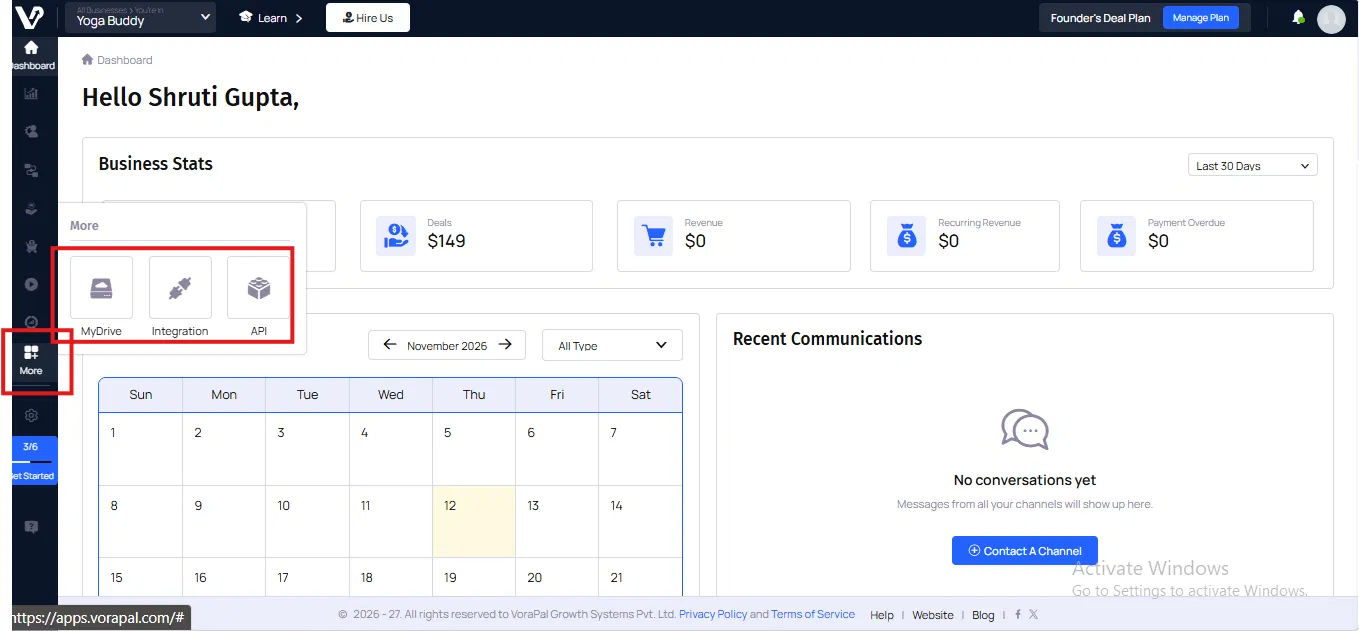
Click Integration. This opens the Integrations page.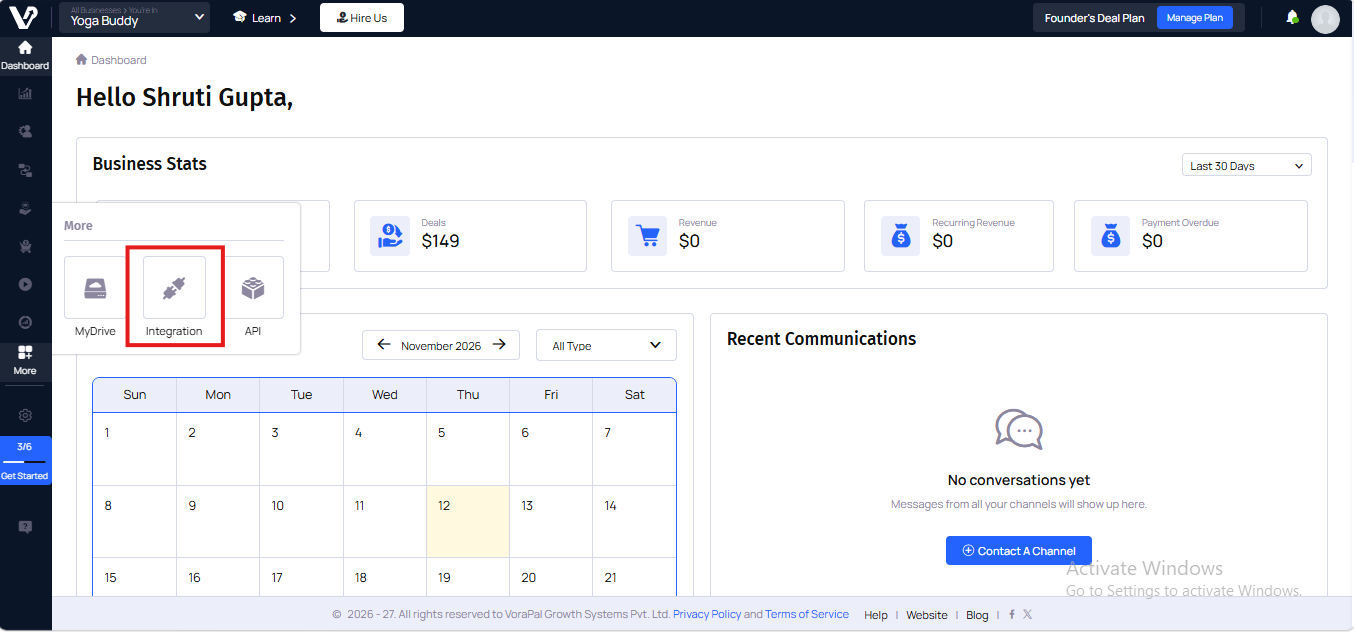
From the menu on the left, click Booking The Bookings page will open.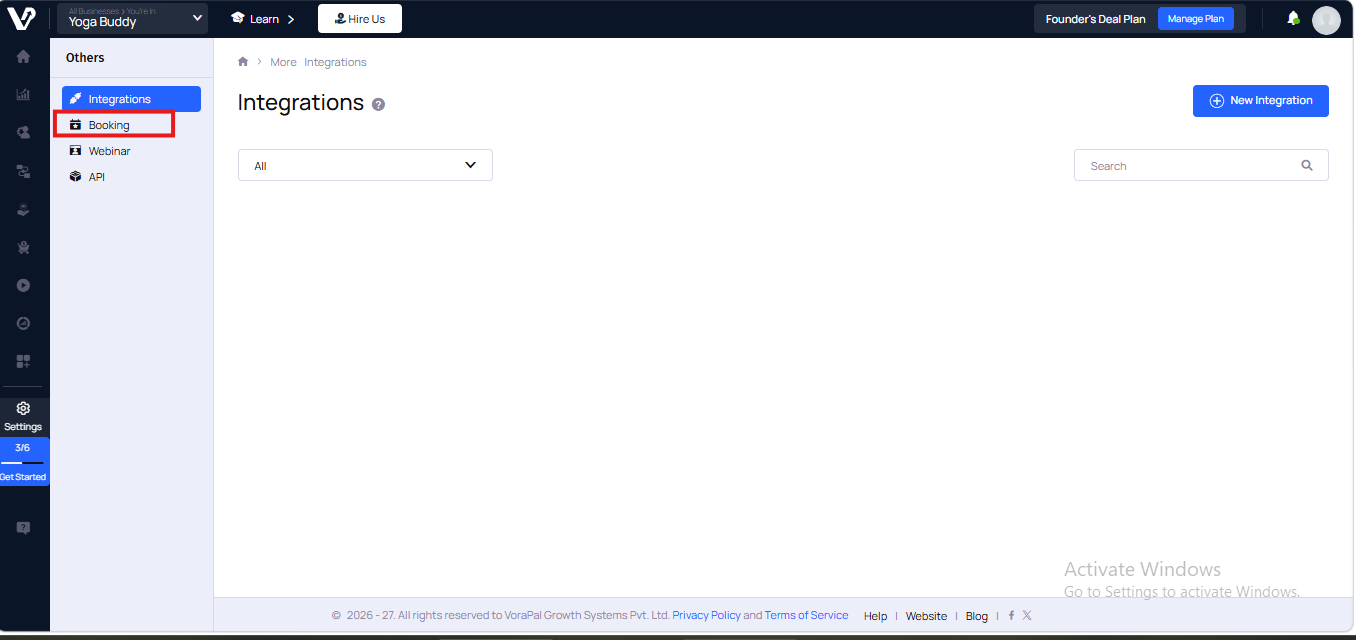
In the top-right corner of the Bookings page, click the + New Integration button. The available booking integrations will be displayed: Zoom, Google Meet, and Microsoft Teams.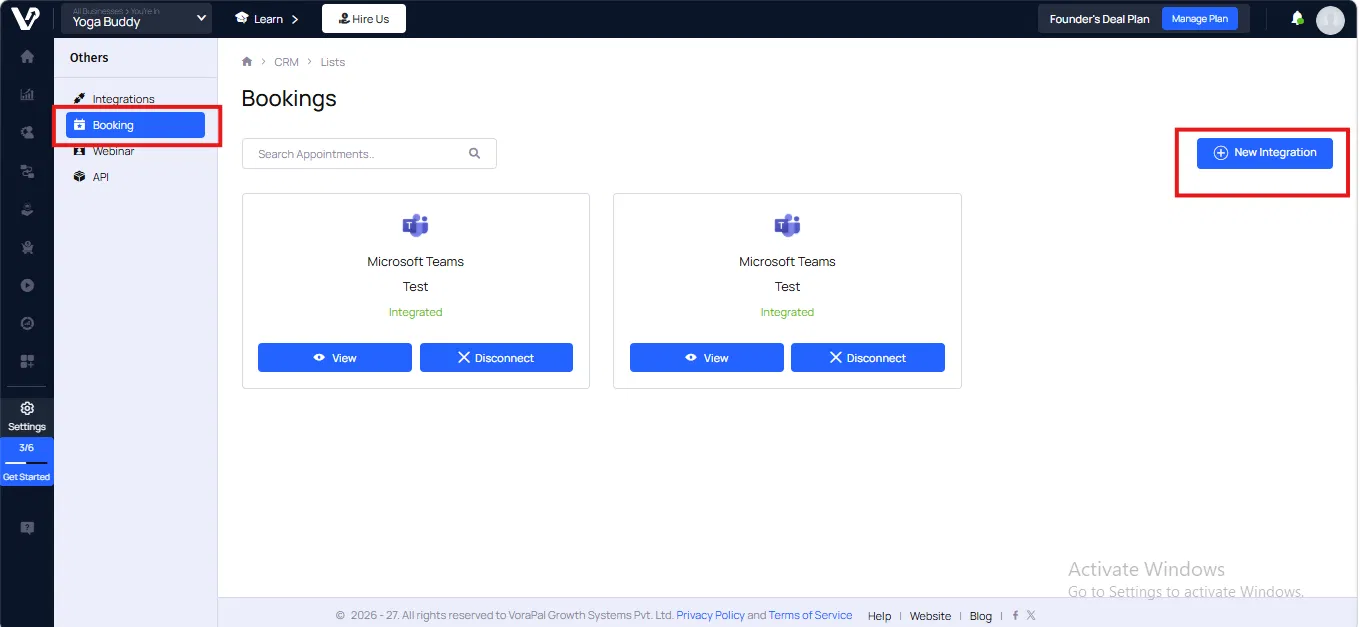
Locate Zoom and click the Integrate button beneath it.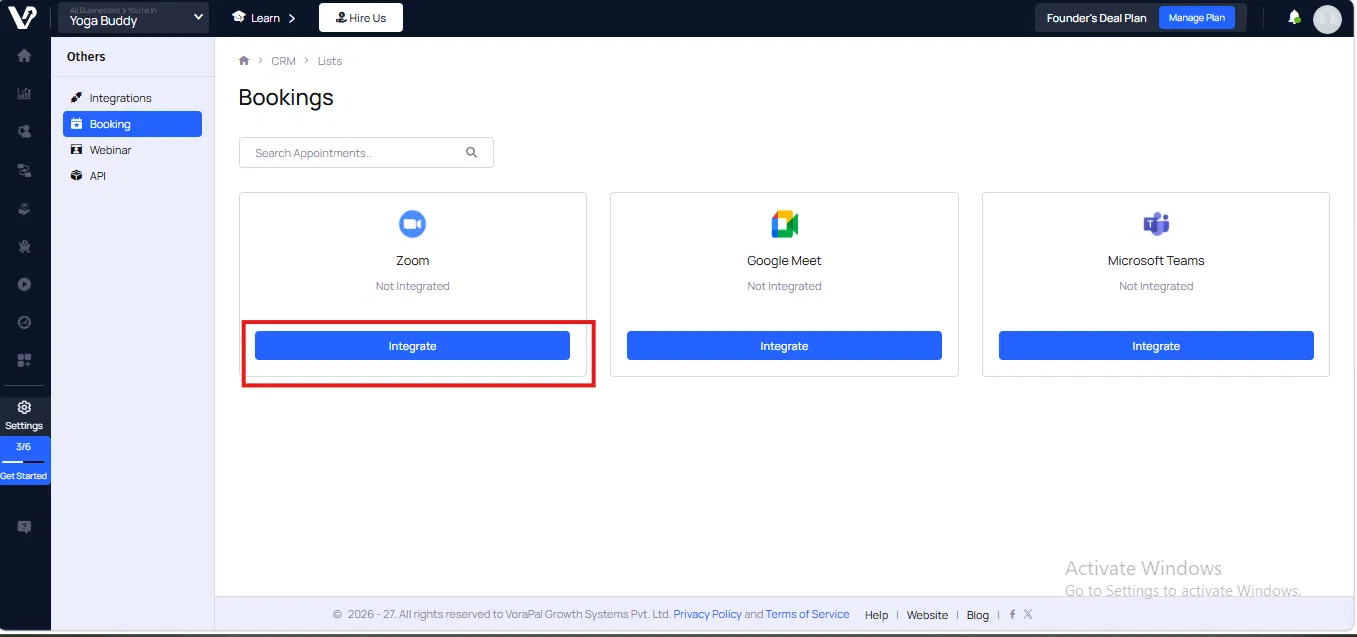
A credentials form will slide into view below the integration options. Fill in the following:
- Title — Enter a name to identify this connection (e.g.,
Zoom by YogaBuddy). This label will appear in your Bookings page. - Redirect URL — This field is pre-filled automatically by VoraPal (
https://apps.vorampal.com/zoom/callback). Do not modify this value.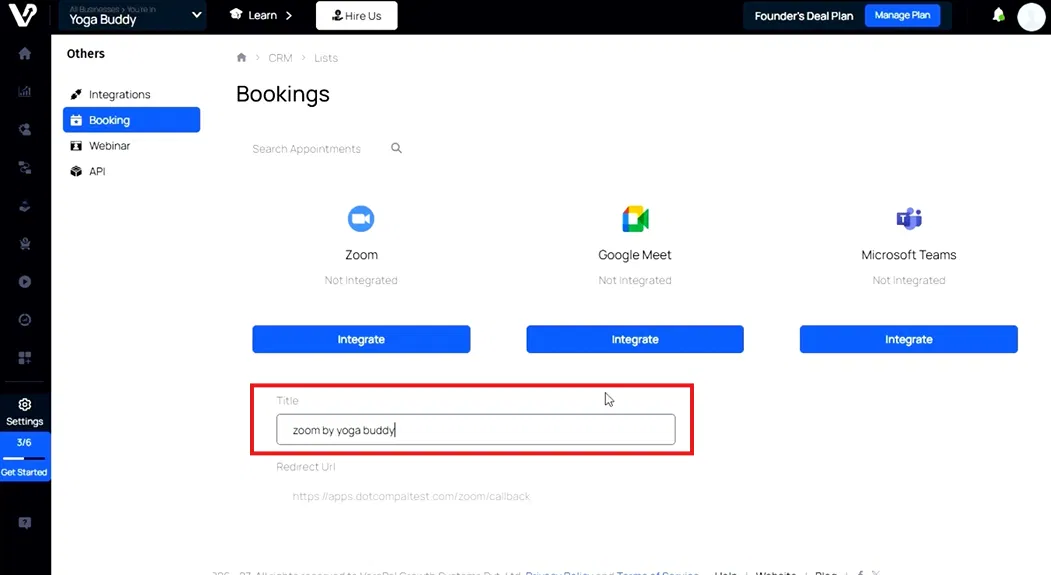
After entering a title, click the Save API Credentials button. VoraPal will begin the authorization process and open the Zoom sign-in window.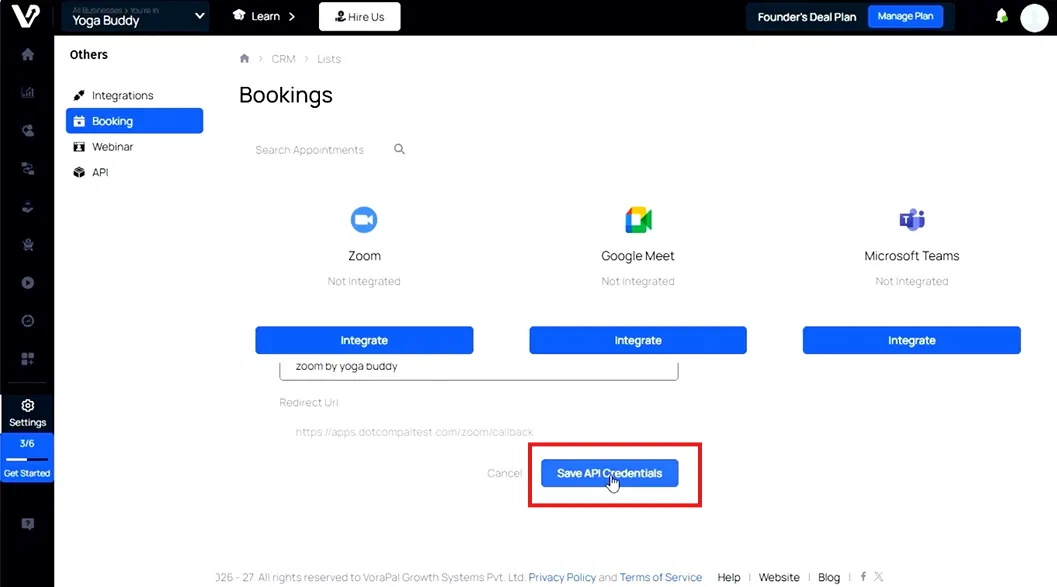
On the Zoom sign-in window, enter your Zoom account email address and password, then click Sign In. Alternatively, you may sign in using SSO, Apple, Google, Facebook, or Microsoft.
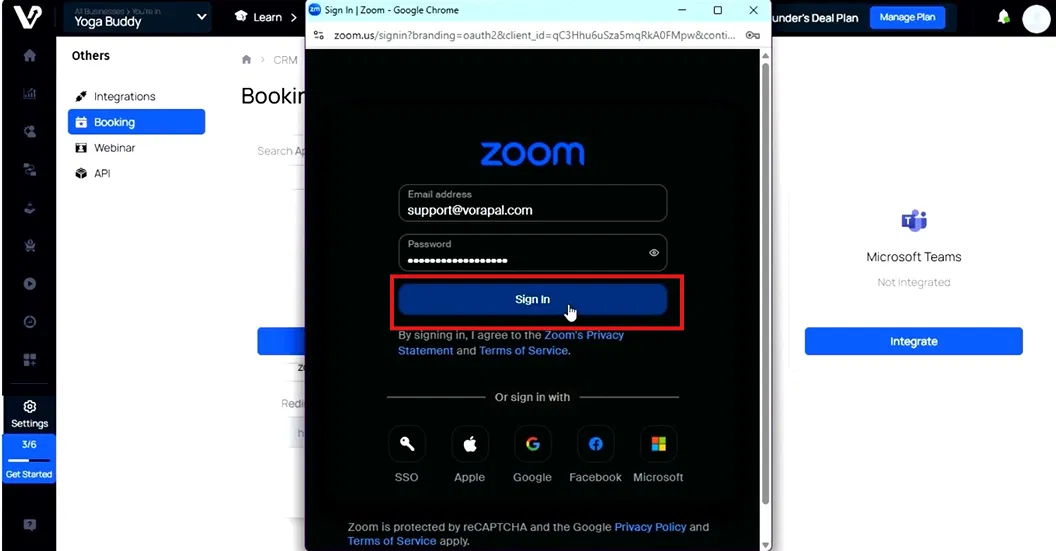
Use the credentials for the Zoom account you want to link to VoraPal. Make sure this account has admin permissions in Zoom before proceeding.
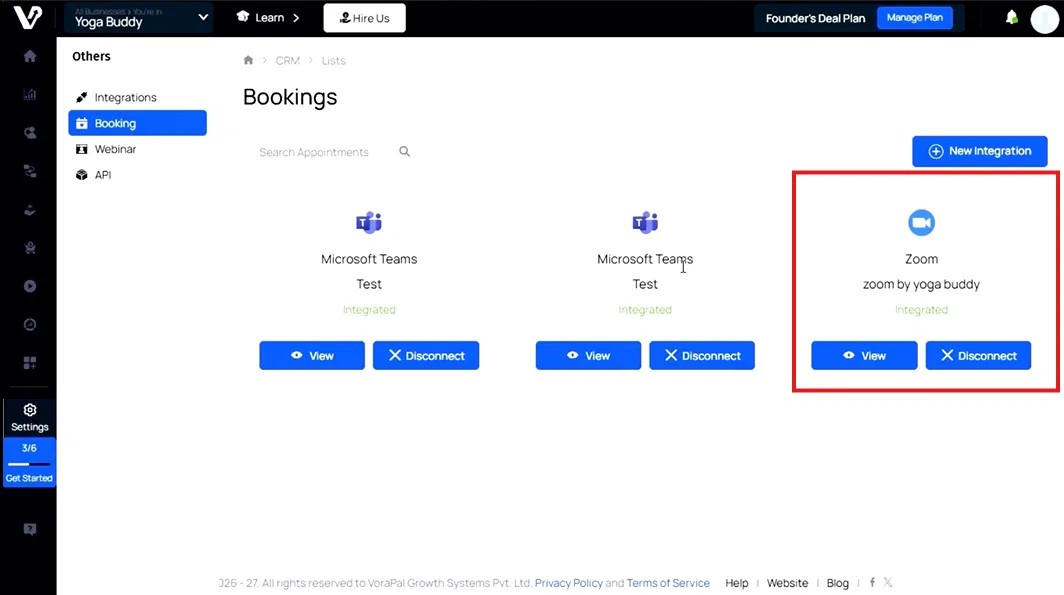
You will be returned to the Bookings page in VoraPal. Your Zoom integration will now appear with the title you entered and the status Integrated, confirming the connection was successful.
Was this article helpful?
That’s Great!
Thank you for your feedback
Sorry! We couldn't be helpful
Thank you for your feedback
Feedback sent
We appreciate your effort and will try to fix the article