Welcome to VoraPal! This guide takes you from creating your account to a fully set-up Growth Operating System: the 6 connected systems that help you attract leads, convert them, get paid, deliver your service and scale.
Time needed: about 10 minutes for account setup, then 15 minutes per Growth System.
- Create your VoraPal account
- Verify your email and log in
- Complete onboarding (business type and niche)
- Finish the 2 mandatory steps
- Install your 6 Growth Systems
- Find your way around the dashboard
Step 1: Create your VoraPal account
- Go to www.vorapal.com and click Start Free Trial.
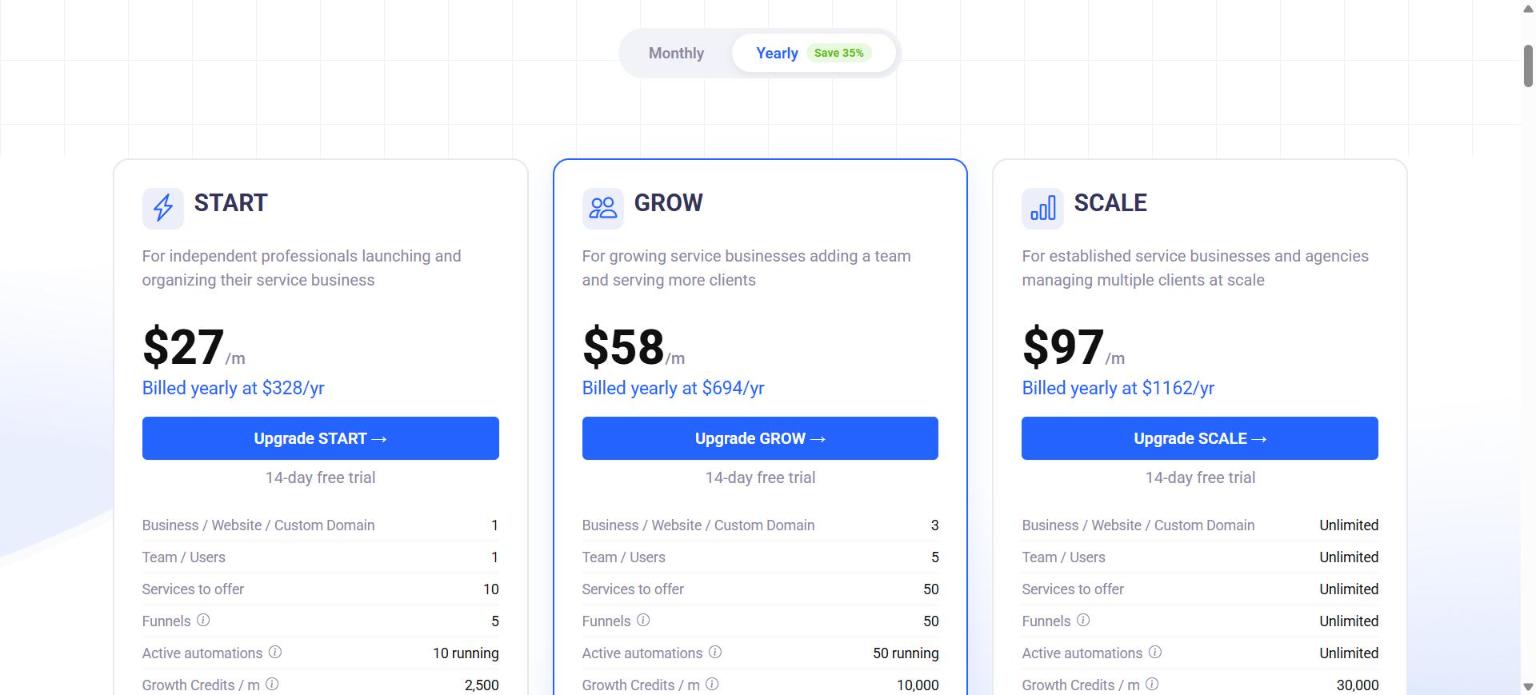
- On the Pricing page, choose Monthly or Yearly billing and pick the plan that fits your business. Every plan starts with a 14-day free trial.
- Enter your name and email address to create your account.
Step 2: Verify your email and log in
- Check your inbox for the one-time password (OTP) from VoraPal.
- Enter the OTP on the verification screen to log in.
- Next time, log in from www.vorapal.com/login.
[Screenshot: OTP verification screen]
Step 3: Complete onboarding
VoraPal asks a few quick questions so it can tailor your Growth Operating System to your business.
- Welcome: read the welcome screen, "Let's build your Growth Operating System for Consistent Leads, Sales and Client Servicing", and continue.
- Choose your business type: Consultants, Coaches, Freelancers & Digital Service Providers, Agencies, Clinics & Wellness, Local Service Businesses, Service Firms & Companies, or Others.
- Choose your niche: pick the option that best describes what you do. The choices change based on your business type.
[Screenshot: Business type selection screen]
[Screenshot: Niche selection screen]
Step 4: Finish the 2 mandatory steps
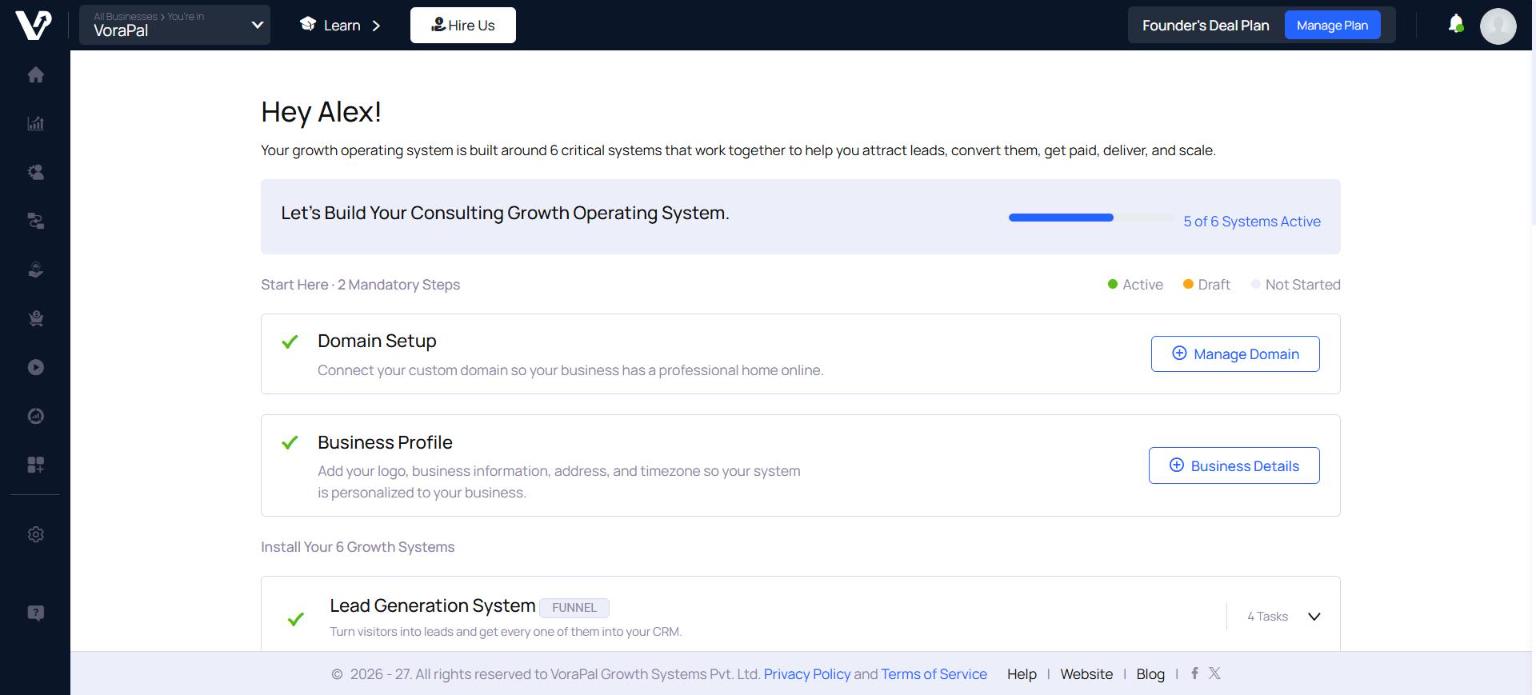
After onboarding, you land on the Get Started page. You can return to it any time using the Get Started button at the bottom of the left sidebar. It also shows your progress, for example 0/6.
Under Start Here · 2 Mandatory Steps, complete:
| Step | What it does | Click |
|---|---|---|
| Domain Setup | Connect your custom domain so your business has a professional home online. You can start with your free VoraPal subdomain. | Manage Domain |
| Business Profile | Add your logo, business information, address and time zone so everything is personalised to your business. Takes about 2 minutes. | Business Details |
A green tick appears next to each step once it's done.
Step 5: Install your 6 Growth Systems
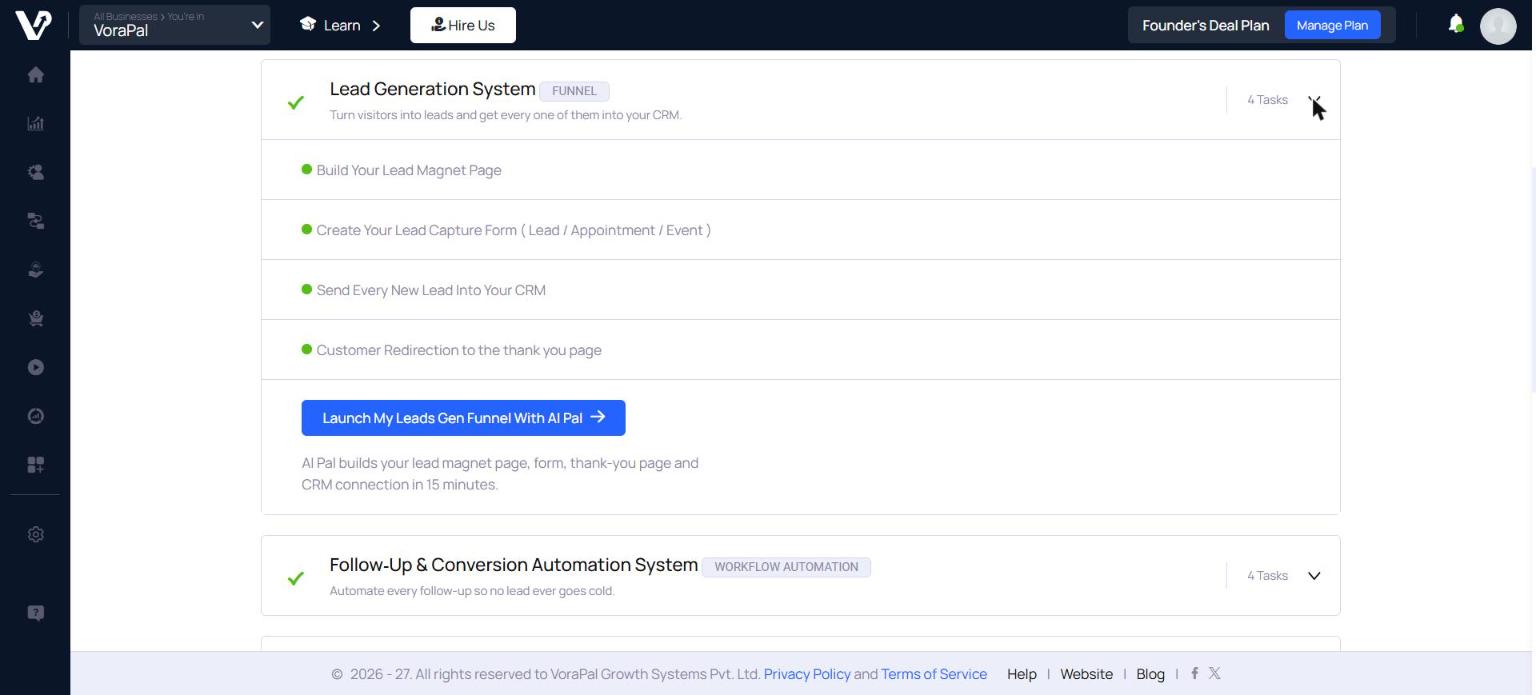
Under Install Your 6 Growth Systems, click any system to expand it and see its tasks. Each system shows a status: Active (green), Draft (orange) or Not Started (grey). The bar at the top tracks how many systems are active, for example 2 of 6 Systems Active.
| Growth System | What it does | Tasks |
|---|---|---|
| 1. Lead Generation System | Turns visitors into leads and gets every one of them into your CRM. | Build your lead magnet page · Create your lead capture form (Lead / Appointment / Event) · Send every new lead into your CRM · Redirect customers to the thank-you page |
| 2. Follow-Up & Conversion Automation System | Automates every follow-up so no lead goes cold. | Send the lead confirmation email / booking reminders · Set up the follow-up sequence · Assign leads to team members automatically · Add tags to leads |
| 3. Client Management System | Manages every contact, conversation and deal in one place. | Import your contacts and tag them · Set up your sales pipeline stages · Add your first deal and move it forward · Open your calendar for client appointments |
| 4. Offer & Payment System | Turns your offers into paid sales with a simple checkout. | Create your signature offer and pricing · Connect your payment gateway · Build your checkout page · Add order bumps and upsells · Send your first payment link or invoice |
| 5. Service & Delivery System | Delivers a professional, repeatable client experience. | Create your service and delivery details · Share your service booking link · Set up your first client project and tasks · Turn on your client portal for deliveries |
| 6. Analytics, Team & Scale System | Brings your team and reporting together so you can see what's working. | Invite your team and set their roles · Add your next business or brand · Turn on instant new-lead alerts |
Step 6: Find your way around the dashboard
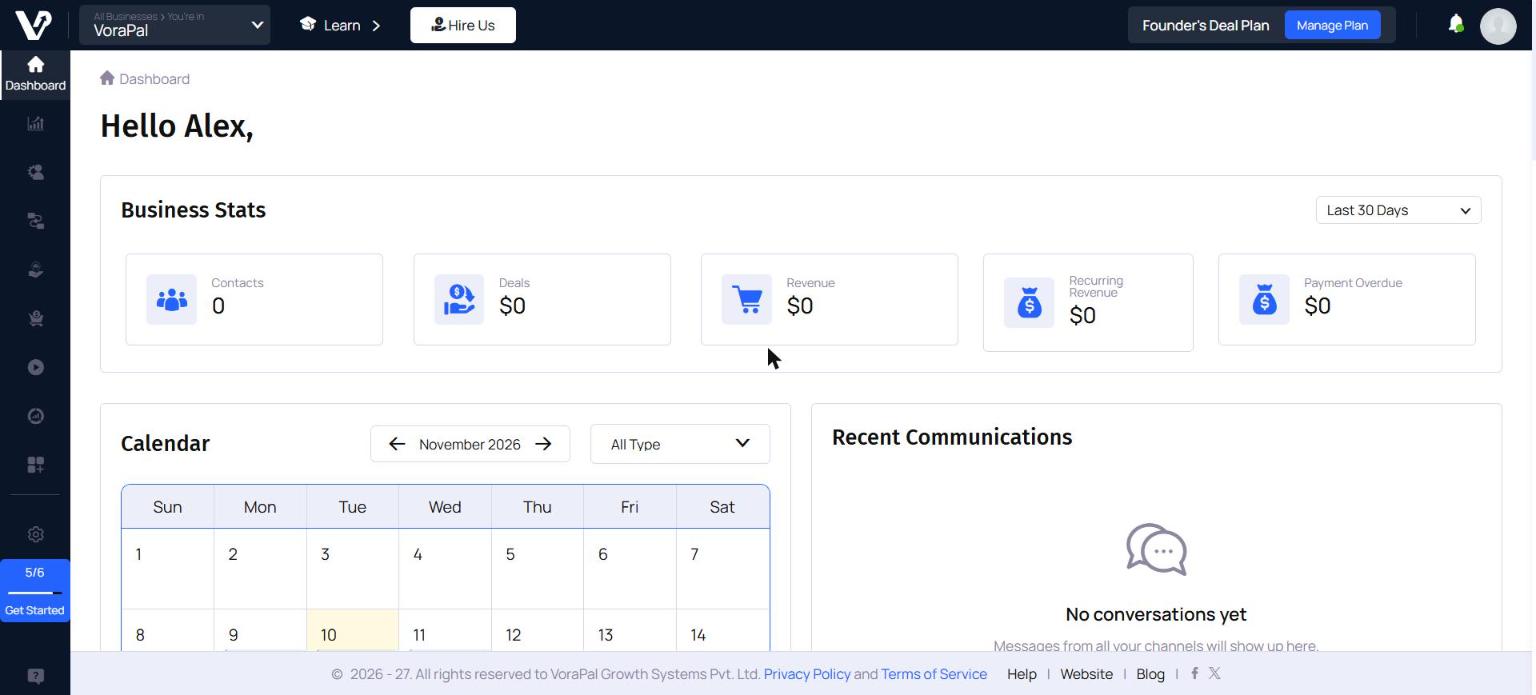
Top bar
- Business switcher (top left): shows the business you're working in. Use it to switch between businesses or brands.
- Learn: training videos and guides for every module.
- Hire Us: get the VoraPal team to set things up for you.
- Your plan / Manage Plan: view usage, upgrade or manage billing.
- Notifications (bell) and profile menu: your account settings, team, businesses and logout.
Left sidebar
- Dashboard: business stats (contacts, deals, revenue, recurring revenue, overdue payments), your calendar and recent communications.
- Market: funnels, website, forms, popups and campaigns.
- CRM: contacts, deals, pipelines, calendar and messages.
- Automation: workflows that follow up for you.
- Services: your services, bookings, projects and client portal.
- Payments: products, checkout, invoices and transactions.
- Video and Analytics: host videos and track performance.
- Settings, Get Started and Help sit at the bottom.
Growth tips for your first week
- Start where the money is. Set up the Lead Generation and Offer & Payment systems first. Together they let you capture leads and take payments.
- Connect your payment gateway early. You can then send your first payment link or invoice straight from VoraPal.
- Turn on instant new-lead alerts (in the Analytics, Team & Scale system). Responding fast is one of the easiest ways to win more clients.
- Share your service booking link everywhere
FAQs
How do I get back to the setup checklist?
Click Get Started at the bottom of the left sidebar.
Do I have to complete all 6 systems at once?
No. Complete the 2 mandatory steps first, then install the systems in any order. Your progress is saved.
Can I manage more than one business?
Yes. Use the business switcher at the top left, or Add Your Next Business or Brand in the Analytics, Team & Scale system. The number of businesses depends on your plan.
I'd rather have it done for me. Is that possible?
Yes. Click Hire Us in the top bar.
Need help?
Click Help at the bottom of the left sidebar to search the Knowledgebase or submit a ticket.
Related articles
- Set up your Business Profile
- Set up your domain
- Launch your Lead Generation System with AI Pal
- Connect your payment gateway
Was this article helpful?
That’s Great!
Thank you for your feedback
Sorry! We couldn't be helpful
Thank you for your feedback
Feedback sent
We appreciate your effort and will try to fix the article